Saturday, February 20, 2016

Highly Useful iPhone Features

6 Uncommon But Highly Useful iPhone Features

An iPhone is a brilliant device and anyone who has one knows that it can make almost everything you do easier; whether that be looking for a nearby bar or sending e-mails to clients and colleagues. However, while you're probably familiar with many of the very useful aspects of your phone, there is a good chance that there are still things that you haven't made full use of yet. There are probably elements of your phone that you aren't using to the fullest. Here we will look at a few things to do with your iPhone that you perhaps weren't aware that you could do.

Use a Keyboard
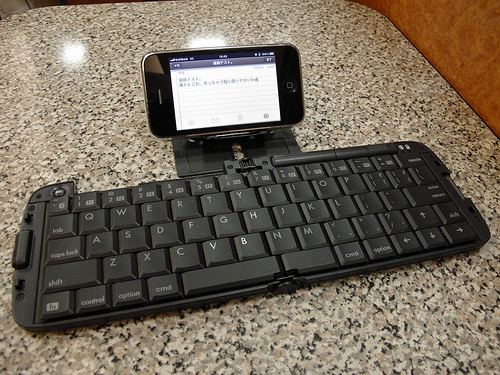
iPhone Keyboard

 iPhones are undoubtedly useful productivity tools, but unfortunately, they are limited by having a small touch screen as the only input option. A great way to get more out of your iPhone, is to use a Bluetooth keyboard to control it. Using a Bluetooth keyboard, you can type as quickly as you could on a PC and even control your phone remotely.

Share Files


iPhones come with a built in cloud service called iCloud.  iCloud allows you to drag and drop files into a shared folder which all of your devices can access. This way, you can edit a file and then share it with your main computer within instances and with no need to use any wires. Drop Box offers a similar option.

Tethering
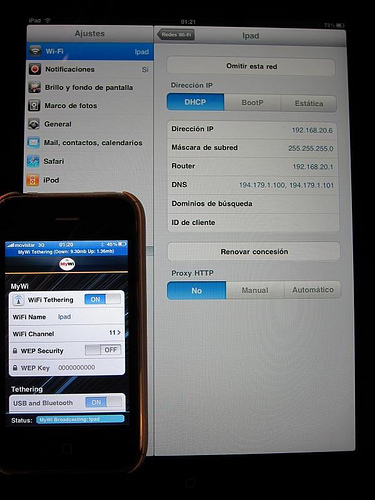
iPhone Tethering

Only recently have iPhones caught up to Android in this respect, and it's a good thing they did as this is one of THE most useful functions of modern smartphones. Basically by enabling wireless tethering, you can provide a Wi-Fi internet connection that a computer or even another phone can connect to; meaning that you always have access to the web wherever you go.

Jailbreaking
If you haven't considered jailbreaking your iPhone yet, then perhaps it's time to. This way you will be able to run a vast number of apps that you currently won't be able to and that will allow you to get a LOT more out of your phone. This includes the use of emulators, the ability to customize the appearance and even the option to use a different keyboard or a different web browser. It's not illegal and it's easily reversible. The only thing against it is that it voids your warranty. So, use it only if your phone is out of its warranty period.

HDMI Cable
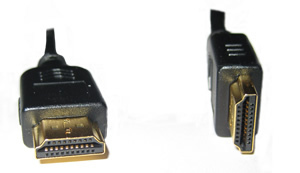
Connect iPhone to TV

There are HDMI cables available for iPhone that allow you to connect your smartphone to a HD TV; meaning that you can watch YouTube or play apps on the big screen. Combine this with a wireless keyboard or controller and you practically have a mini game console that you can carry anywhere with you.

Computer Control

Apps like TeamViewer allow you to control your computer wherever you go; meaning that you can open and edit documents, stream movies and more. This is amazing for watching films while reclining on the sofa, or for quickly accessing your files when you're traveling.

Increase A Laptop's Battery Life [How To]

Increase A Laptop's Battery Life [How To]

When you’re constantly on the move and rely on your laptop to perform when you most need it, you need to be sure that your battery won’t suddenly drain on you, leaving you in the lurch. If this sounds like a situation that you frequently find yourself in, perhaps you should look at upgrading to a laptop battery with a longer life. But if that step sounds a bit drastic, there may be a few things that you can do to prolong your battery’s power, when you don’t have access to a mains supply.


Turn down the brightness of your screen

Most modern laptops allow you to control the brightness of the screen. As you might expect, the brighter the screen, the more power is required. Dim the screen and you could find that your battery lasts a lot longer.

Shut down programs that aren’t being used

It’s often the case that you’ll have a number of programs running, yet you’re only using one or two of them. Although you might not see them running, they could be running in the background, adding to your CPU load, and consuming more energy. Shut down the programs not in use and save energy. If you’re unsure about programs running in the background, simply open the task manager.

Clean the battery contacts

You should clean the connection points on your laptop’s battery every now and then. Dampen a cloth with alcohol and use it to clean the points. Clean points mean that electric current can pass through efficiently, meaning you save on wasted power.

Use the CD/DVD drive sparingly

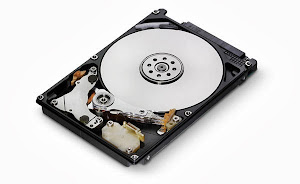
CD and DVD drives use a substantial amount of energy to operate. If possible, opt to use the hard drive instead, as this requires less energy.

Defragment your hard drive regularly

If you regularly defragment your hard drive, it will operate more efficiently. The more efficiently your hard drive operates, the less demand is placed on the battery, meaning you will get more life out of it! As an additional advantage, this will also help in speeding up your computer.

Do not use wireless networks

If you are not in need of a wireless connection, it is better to turn off the wireless receiver on your laptop as it puts unnecessary strain on your battery. Most laptops have an easy to locate switch to turn off wireless networks.

Disable unnecessary visual effects

Your computer requires computing power to show all those stunning visual effects. More computing means more battery consumed. Hence, if you want your battery to last longer, it is advisable to preferably turn off or at least tone down those visual effects.

Change Power scheme

Changing your power scheme to Power Saver makes your computer adjust its settings to use power minimally and give you extended battery life. Most operating systems allow you to change power schemes.

Regularly clean the air vents and keep your laptop cool

Your laptop will operate far more efficiently at lower temperatures. If your air vents are clogged up with dirt and dust, the machine cannot be cooled efficiently. By regularly checking that air can pass freely through the vents, you can be sure that your laptop remains as cool as possible. You can use a brush or a lightly dampened cloth to remove any dust or dirt. For even better cooling, you can try a laptop cooling pad.


Refrain from using external devices

External devices, such as external hard drives, iPods, and even your mouse can put unnecessary strain on your battery. If it isn’t absolutely crucial that you use these external devices, shut them down and disconnect them entirely to save on battery usage.

Only multitask when absolutely necessary

Performing multiple tasks at any one time, for example listening to music whilst downloading files and creating Word documents, will again put unnecessary strain on your computer. When battery power is scarce, don’t over-work your laptop and drain the battery too quickly.


Why a hard drive has less storage space than promised?

Why a hard drive has less storage space than promised?

It has happened to most of us. We buy a new hard drive (or maybe a flash drive) with mind boggling storage capacity only to find that it has less space than what was mentioned on the box. Angered, we start cursing the manufacturer and our dealer for false marketing thinking that they should be sued for doing this. Hey, but have you ever wondered how they continue to do this again and again without getting into legal trouble?

The answer is that they are not marketing it falsely at all. Surprised? I'll explain.
hard drive

A manufacturer considers 1 Megabyte to be 1000 Kilobytes, 1 Gigabyte to be 1000 Megabytes, 1 Terabyte to be 1000 Gigabytes and so on. This is correct considering that kilo means 1000 and mega means 1000000 (10^6). However, computers calculate on base 2 and to them, 1 MB is actually 1024 kilobytes, 1GB is 1024MB and 1 TB is 1024GB. This difference in the method of computation is responsible for this "missing space."

Lets take an example of a 500 GB hard disk.

From a manufacturer's point of view, the 500GB will have 500*1000*1000*1000 = 500000000000 bytes.

From a computer's point of view, 500GB is actually 500*1024*1024*1024 = 536870912000 bytes.

So, a hard drive that promises to have 500 GB storage space will actually display 465.66GB, 536870912000-500000000000 = 36870912000 bytes (34.34GB) less storage space when connected to a computer.

Space PromisedDisplayed on a computerDifference
100GB93.13GB6.87GB
250GB232.83GB17.17GB
500GB465.66GB34.34GB
1TB931.32GB92.68GB
2TB1862.64GB185.36GB

Take a look at the table given above to see how much space is "lost" due to computers working on a base 2 system. As you can see, with the increase in capacity of the storage device, there is an increase in the missing space.

Connect a Laptop or Desktop Computer to a TV Easily

Connect a Laptop or Desktop Computer to a TV Easily

Suppose you wish to watch a movie or share a slide-show of pictures with your family on your PC but have a screen that leaves much to be desired. In such a situation, you can connect your computer to a television screen to allow your entire family to enjoy comfortably.

Connect Laptop Computer to Television
There are many ways in which you can connect your laptop/ computer to a television. However, the overall video quality will be different for different methods. You can choose which one to use based on the quality or the availability of hardware. The first step is to know what type of ports and connections your TV and computer have. If you already know the type of ports and connections available on your hardware, you can directly jump to Step 2. If not, then the different types of ports are explained in detail below:-

Connect PC or Laptop to TV
Different types of PC to TV connection ports
1) RCA/Composite: The oldest and the lowest quality connection available. They are the Yellow, Red and White connections most of us are familiar with. Yellow is used for composite video, white for left analog audio and red for right analog audio.

2) S-Video: S-Video or Super Video offers slightly better quality than Composite connections. As it is one of the oldest type of connections available, most televisions and computers have it. There are two types of S-Video ports, one containing 4 pins and the other containing 7 pins. This type of connection is used only for video. So you will need to connect an audio cable from your computer's headphone jack to the red and white audio inputs on your TV if you want audio to work.

3) VGA(Video Graphics Array): Most computers and televisions have a VGA port. It offers much better quality than S-Video and should be preferred if you have a HDTV. Older CRT TVs however, will not have a VGA port and will require a PC to Television converter. Just like S-Video, VGA also does not support audio and will require an additional audio cable.

Laptop Computer to TV
Different types of connecting cables to connect computers to TVs
4) DVI: Digital Video Interface offers much better quality than VGA connections. Most laptop computers and HD TVs will have these connections. Just as the name suggest, this type of connection can be used only with digital TVs. Also like the previous two, DVI connections also require the use of an audio cable for audio to work.

5) HDMI: The highest quality connections available. Most HD TVs will have this connection, however, chances are that your computer would not. If your computer happens to have a HDMI connection port, this should be preferably used. If your computer doesn't, you can use an HDMI to DVI adapter to convert HDMI to DVI.

Step 2: Once a common type of port between the two devices is recognized, you will need the right connector cable to physically connect them. The different types of connector cables are pictured above. If you do not find two matching types of connection ports, you will need an adapter to make the connections type match.

Step 3: After connecting the two devices, on your TV, select the external input with which your TV is connected to the computer. It may be HDMI1 or AV1 depending on how you have made the connection. This is much similar to how you select input from your DVD player.

If you have followed the steps correctly, your TV should now be displaying your computer's screen.

Important: If your computer is not recognizing the external display, you must connect the TV before starting your computer. If the picture appears distorted, you will need to change the screen resolution of your TV by altering the display settings from your computer. Most older TVs will support only one display resolution while newer TVs will support plenty of them.

PC Security Tips : Make Computer Secure

PC Security Tips : Make Computer Secure

Here are some tips which will enable you to make your PC more secure.

Anti-virus

1. Never, ever turn off the resident protection of your antivirus even if it decreases performance. Upgrade if necessary.

2. Keep your virus definitions up-to-date. Use the automatic update feature of your anti-virus and try not to ignore the "Do you want to update now" message however often it might pop up.

3. Even if you update regularly and you have not seen any suspicious activity on your PC, do a deep scan at least once a month.

4. Always create an emergency boot disk and keep it in a safe place.

PC Security tips

5. Run a deep scan in safe mode at least once every two months to kill viruses that would otherwise remain hidden.

Firewalls

1. If you are unsure about the alert displayed by your firewall, try searching it on the internet.

2. A firewall is a powerful tool that requires an understanding of how the program works and exactly what it is doing and whether it is secure or not. Reading the help files is extremely important in successful configuration of your firewall.

3. If you are running a third party firewall,be sure to turn off the Windows Firewall.

4. You can temporarily disable a firewall by right clicking the icon in the tray. This is handy when you know a site is one you can trust but your firewall is blocking it. But remember to re-enable it as soon as possible.

5. Read firewall notices carefully when they pop up so that you don't let a bad thing in or prevent good traffic.


Anti-Spyware

1. You should regularly check for updates. Enable the automatic update feature.

2. Remember to do a scan every now and then, or schedule scans if your program allows it. If you don't want to sit that long for scans to complete, use a single folder for all your downloads, then scan only that folder, Windows installation folder and the Registry. Alternately, you can do a quick scan if your program allows it.


Anti-Spam

1. Be patient with anti-spam software, it will get better over time.

2. Even if it looks that your anti-spam software is working great, periodically check the 'Spam' folder for good mail. None of the anti-spam software is perfect right now.

3. Don't give your anti-spam software too much rules, because it will not learn anything then. It is better if it learns on its own.

Tuesday, February 16, 2016

Make Facebook Photos & Posts Private

Do you have private pictures of yourself or your family on Facebook which you don't want the entire world to see? This guide will help you change your Facebook privacy settings to only allow your friends or people you know to see your Facebook photos (and everything else you do). You can even customize the privacy settings of individual albums to share them with a small group of people like your co-workers or relatives.

Make Facebook Photos & Posts Private
There are three ways in which you can do this. Either, you can customize each wall post's or photo's settings individually, or set the preferences for specific albums or use a general setting for all posts and photos you have.

1: Choosing an individual wall post's or photo's privacy settings

While posting your photo or post, click on the down arrow left to the post button. Select Custom from the drop-down menu. Using the pop-up, select who you wish to make a post visible to. You can select if you wish to show a post to friends, friends of friends or specific people or a specific list of people.

You can even hide a photo from specific people or a list of people. This will be especially useful in situations where you don't want your colleagues to see a certain picture that makes fun of them or something similar. Normally, when someone is tagged in a photo, every friend of that Facebook user gets to know about it. So, if you chose to make a photo visible to friends and someone is tagged in that picture, all their friends will see that image. To prevent this, uncheck the Friends of those tagged checkmark.


2: Limiting the Audience for an entire album

This is much similar to setting the audience for an individual picture. Just go to your albums, click on the Settings icon on the bottom right of the album whose privacy settings you wish to customize. Then select Custom from the drop down menu. The options Facebook offers are almost the same as those for an individual photo, however there is one difference.


All those people who are tagged and their friends would still be able to see the photos in your album. To prevent this, you will have to change the privacy settings of each individual photo.

3: Making all your Photos and Posts Private

This is the permanent solution against worrying about your Facebook content. However, it doesn't offer much customization options and should only be used if you are sure how you will use Facebook. This is a 2 step process and involves customizing the audience for your past posts as well as those you will make in future.

Step 1: Limiting Past Posts & Photos
Go to your Privacy Settings, and then go to "Limit the audience for posts you've shared with friends of friends or Public?." Then click on the "Limit Old Posts" button. In the pop-up, click Confirm. This is a permanent change and cannot be undone. However, all those tagged and their friends would still be able to see your posts. To prevent this, you will have to change each post's settings individually.

Step 2: Limiting Future Posts and Photos

While in the privacy center, click on "Who can see your future posts?" This will open a non-functional status update box. However, the privacy options that open when clicking on the down arrow right next to the post button are functional and act as global defaults for the content you post on Facebook in the future. Make sure to select friends if you only wish to share content with your friends. You can however, change this according to your needs; but for most people, friends would be the best option. You can further improve your privacy by selecting Custom and then unchecking the check box that appears next to "Friends of those tagged". This will customize your Facebook settings to show your Facebook activity only to your friends and those tagged.

You can also select who gets tagged in your content to further prevent your content from appearing in front of unwanted eyes. To do this, go to your Privacy Settings from the Settings icon located at the top right of the blue Facebook bar. Then, in Privacy Settings, click on Timeline and Tagging. Then under, "How can I manage tags people add and tagging suggestions?", select Enabled to review tags that friends add to your posts.

Facebook's privacy settings take some time to adjust but once you are done, you will never have to worry about your content ending up in front of unwanted users.